How to edit text in a HEIC photo from your iPhone
Select a HEIC or HEIF photo from your iPhone, mark the words on a menu or sign, and replace them. Export a JPEG or PNG if the original won’t open.
Choose and edit an image without signing in. It uploads when you're ready to generate.
Start with the clearest original
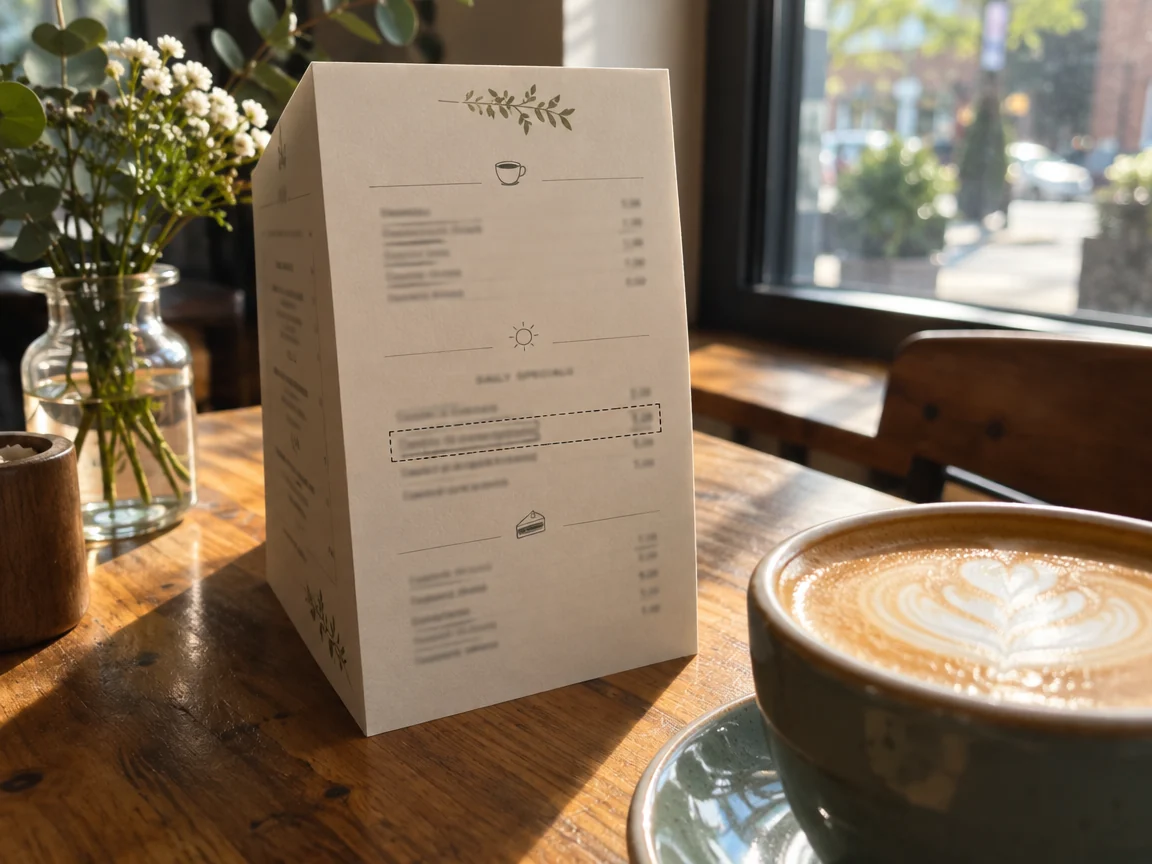
Suppose a café menu says TUE SPECIAL and you want it to say FRI SPECIAL. Choose the original photo from Photos or Files. If you have several shots, pick one with sharp lettering and little glare. Vemlora converts HEIC to JPEG in the browser, then shows the image in the editor.
Mark the menu line and enter the new words
Choose Add region and draw a box around TUE SPECIAL. Leave nearby prices, menu items, and divider lines outside the box. Enter TUE SPECIAL as the original and FRI SPECIAL as the replacement. If the old letters are hard to read, keep the region and leave the original field blank. Remove any blank entry from the edit list before generating.
Check the lettering and the background
Generate the edit and zoom in to check spelling, letter height, and the angle of the text on the board. Compare nearby prices and the background texture with the original before downloading. If glare hid the important letters, try a clearer shot when you have one. Check the downloaded file type if you need a specific format.
If the HEIC file won’t open
Try opening the original on your device. If the photo opens but the editor cannot convert it, open it in Photos or Preview on a Mac, choose File → Export, and save a JPEG or PNG copy. Select that copy in the editor. If it is too large, export a smaller copy and make sure the small print is still legible.