How to edit text in a JPG or PNG without the source file
Edit text in an exported JPG or PNG without Photoshop. Learn when to replace every match, when to select one region, and what to check before downloading.


What you can edit in a flat JPG or PNG
In a flat image, the lettering is part of the pixels. To change a date, price, or short label without Photoshop, open the image in Vemlora and replace the visible words. The result is another image. If you have the original design and expect to revise the copy again, edit its text layer so you can keep making changes there.
Start with the clean export
Use the highest-quality JPG or PNG you still have. For an event poster, write down the exact old date and venue before you start. That makes it easier to verify that the edit landed where you intended.
Replace every matching occurrence
If the poster says SAT 18 in both the headline and the event details, enter SAT 18 and SUN 19. Direct replacement asks the model to update both matches, including matches embedded in a longer line.
Select a region for just one occurrence
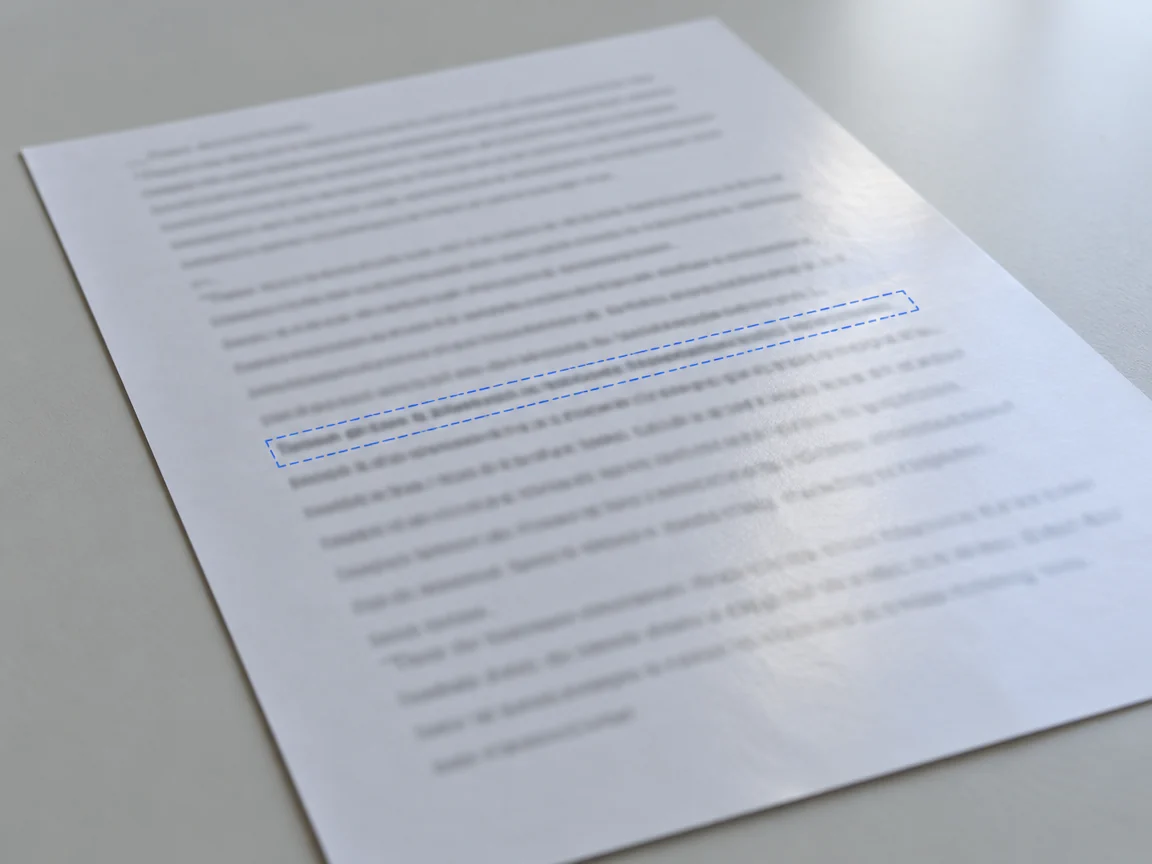
If Studio A appears twice and only the location line should change, draw a box around that instance. Add the original text if there are several labels close together, then enter Studio B as the replacement.
Compare the result at full size
Check the updated wording, then look at the surrounding labels, graphics, and alignment. If the model changed a nearby word or graphic, return to the original image and mark the specific region more tightly.