How to change the date in an image
Change a date on a poster, ticket, or schedule when only the exported image is left, then check the month, weekday, and surrounding copy.
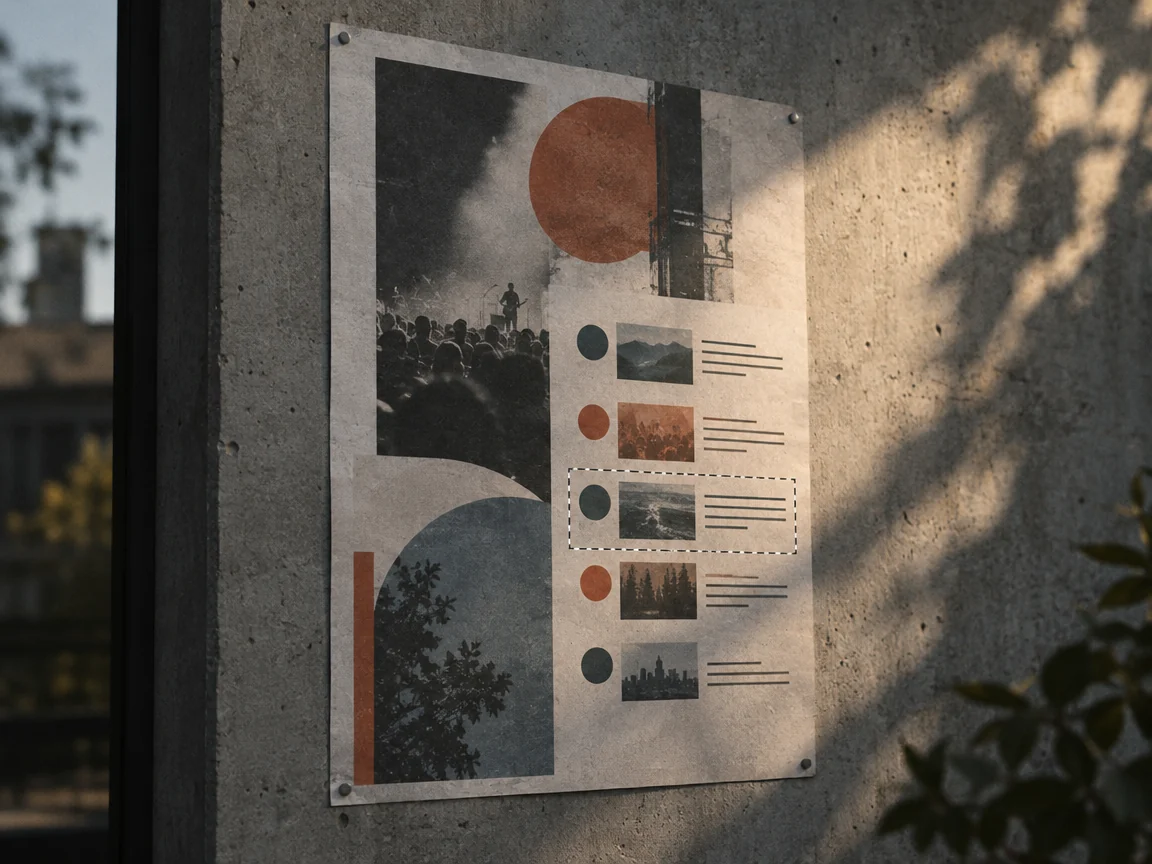
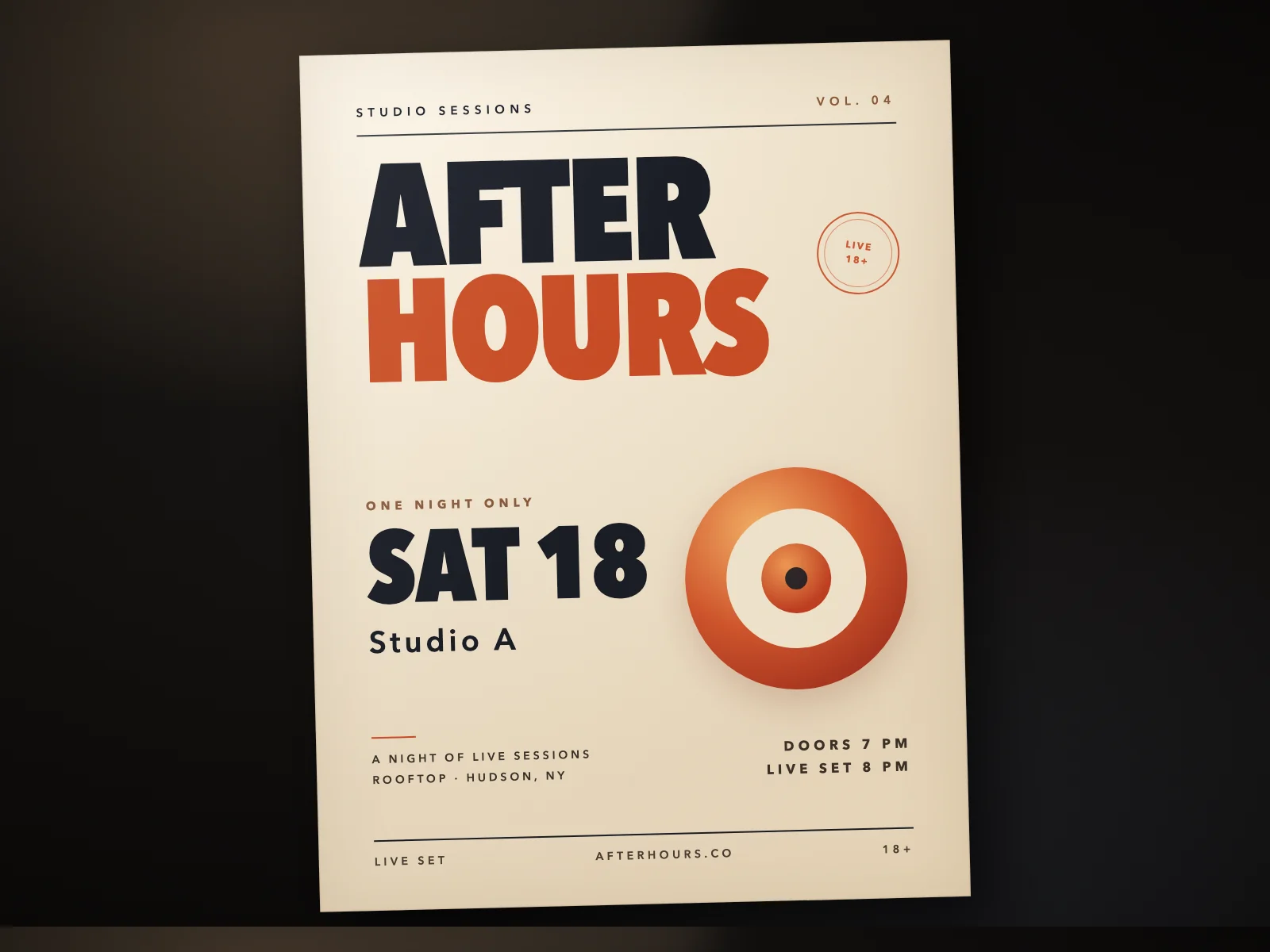
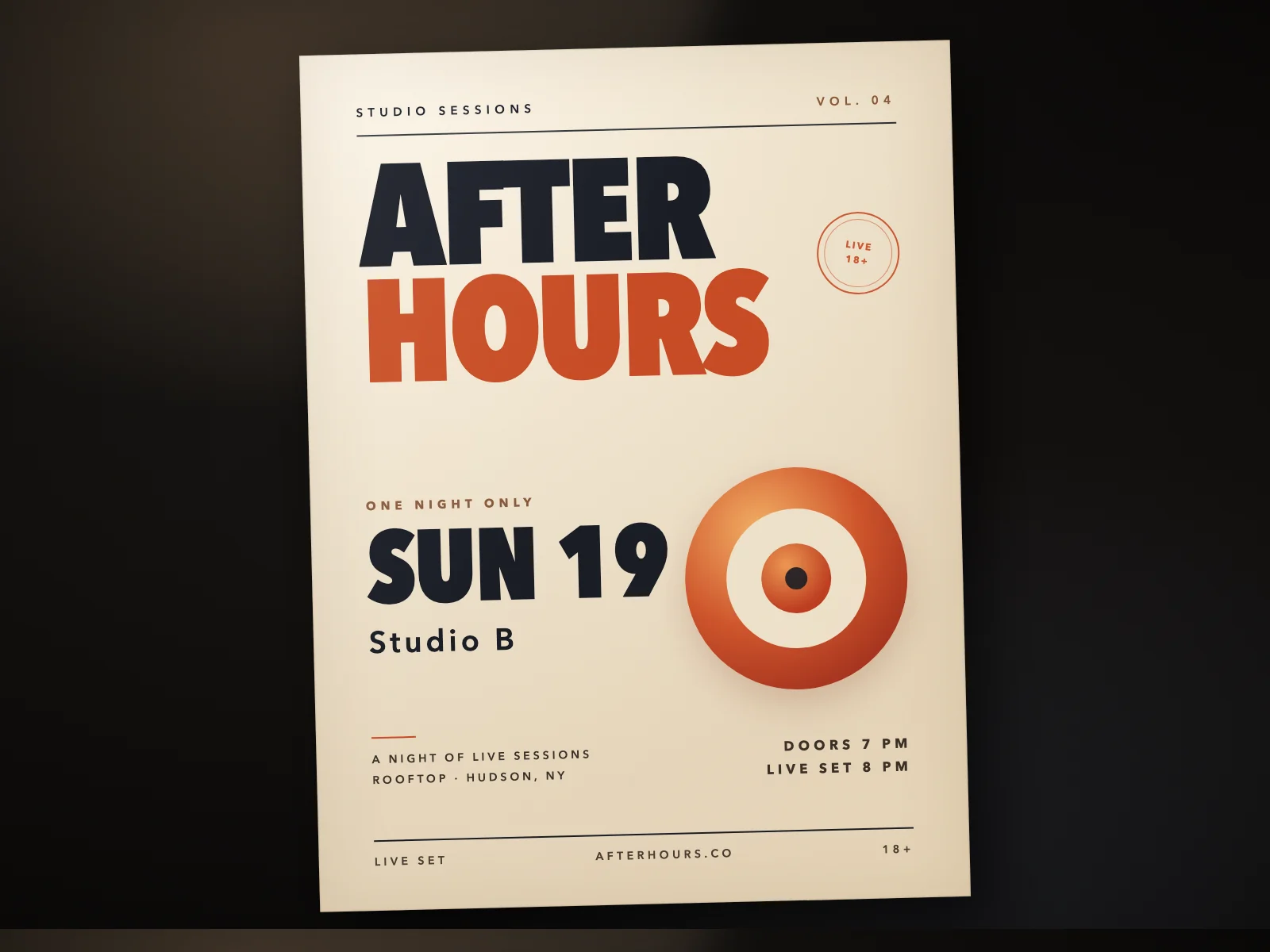
Find every place the date appears
A date often appears in the headline and again in the event details. Decide whether every date should change or only one. If the dates differ, select the single region you need instead of replacing all matches.
Keep the original date format
If the poster says SAT 18, write the replacement in the same style, such as SUN 19. Keep abbreviations, capitalization, and separators consistent. A longer date may need more space, so check that nearby words do not get squeezed.
Check the calendar and nearby text
Make sure the weekday and date still agree, and compare the time, venue, and prices around the edit at 100% zoom. A date can be spelled correctly and still be wrong for the event.
Common questions
- Can I change the date without the design file?
- Yes. Upload the exported JPG, PNG, or WebP and edit the date directly in the image.
- Will the new date match the original font?
- The model reads the lettering from the image and tries to match it. Check the result at 100% zoom; very small or decorative lettering is harder to reproduce.