Edit text on an invitation
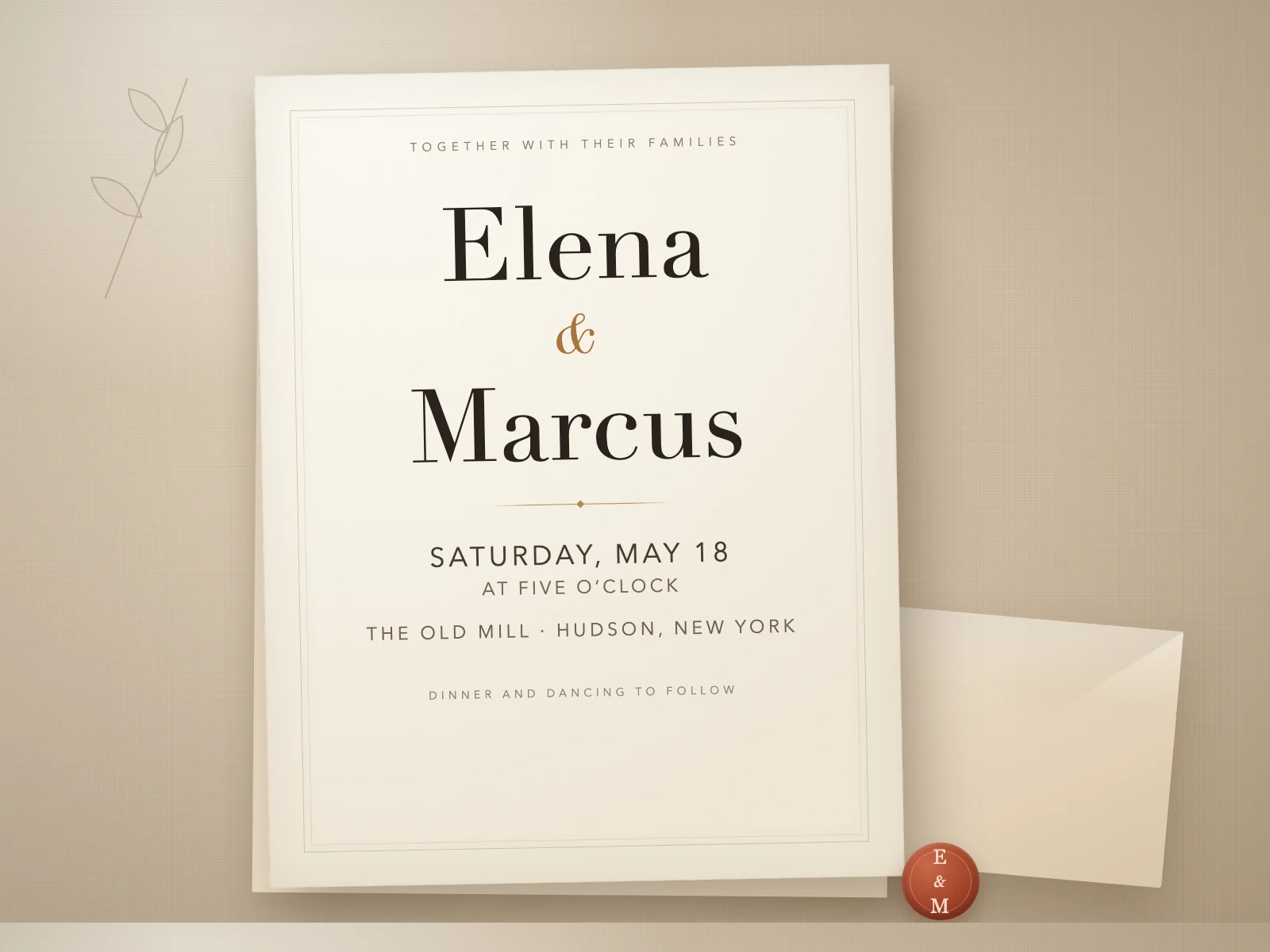
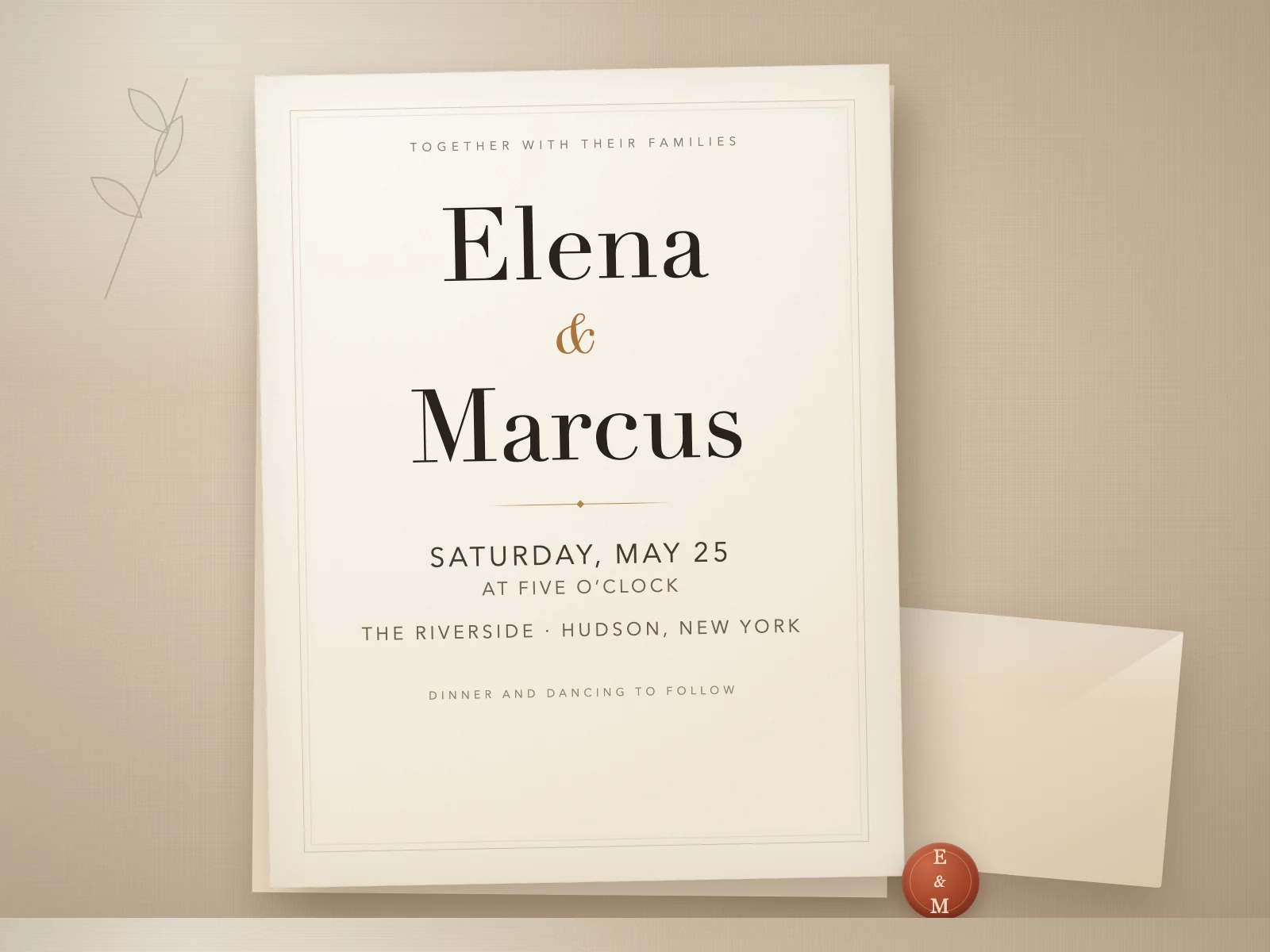
Change the date, time, or venue on a finished invitation image when the design file is gone and the cards have already been printed.
How to make the edit
Open the invitation image
Use the JPG, PNG, or WebP exported for the printer or for the digital version, and pick the largest copy you have so the thin type stays clean.
Move the date
Enter MAY 18 as the original and MAY 25 as the replacement, so the weekday and the time stay as they are. If the weekday no longer matches the new date, edit the whole line instead and check the spelling of the day.
Replace the venue
Box THE OLD MILL and enter THE RIVERSIDE. A longer venue name can crowd the city and the divider dot, so check that line at 100% before you export the card again.
Related guides
Before you download
- Compare the edited area with the original at 100% zoom.
- Check nearby prices, dates, and decoration for accidental changes.
- Keep the original file; an edit creates a new download.
Common questions
- Can I edit the image without the source file?
- Yes. Upload the exported JPG, PNG, or WebP and work on the image itself.
- Can I change only one repeated word?
- Yes. Select just that region instead of replacing every match.