Edit text in a screenshot
Refresh a label or title in a screenshot for a tutorial or product document, without recreating the whole screen.
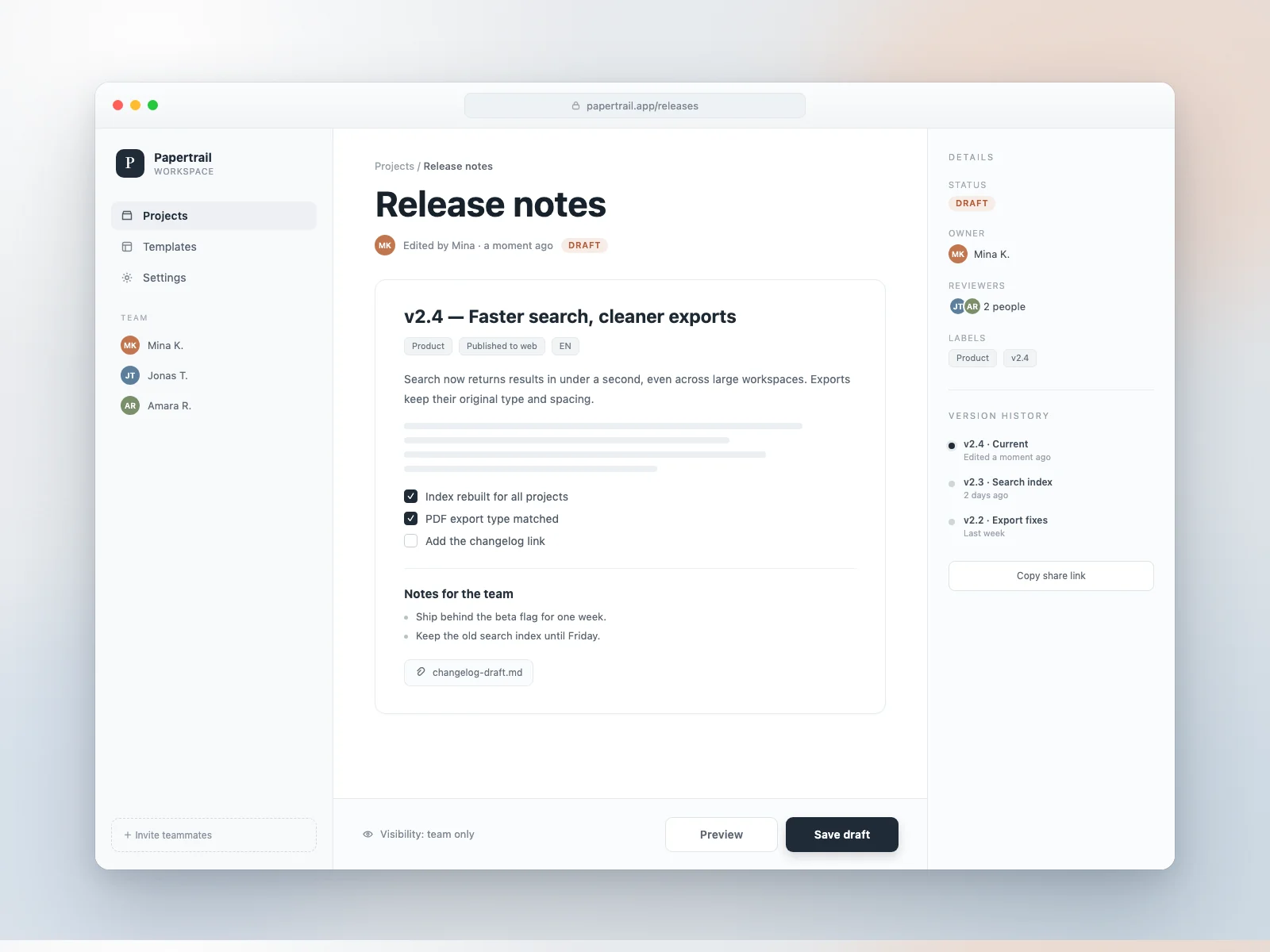
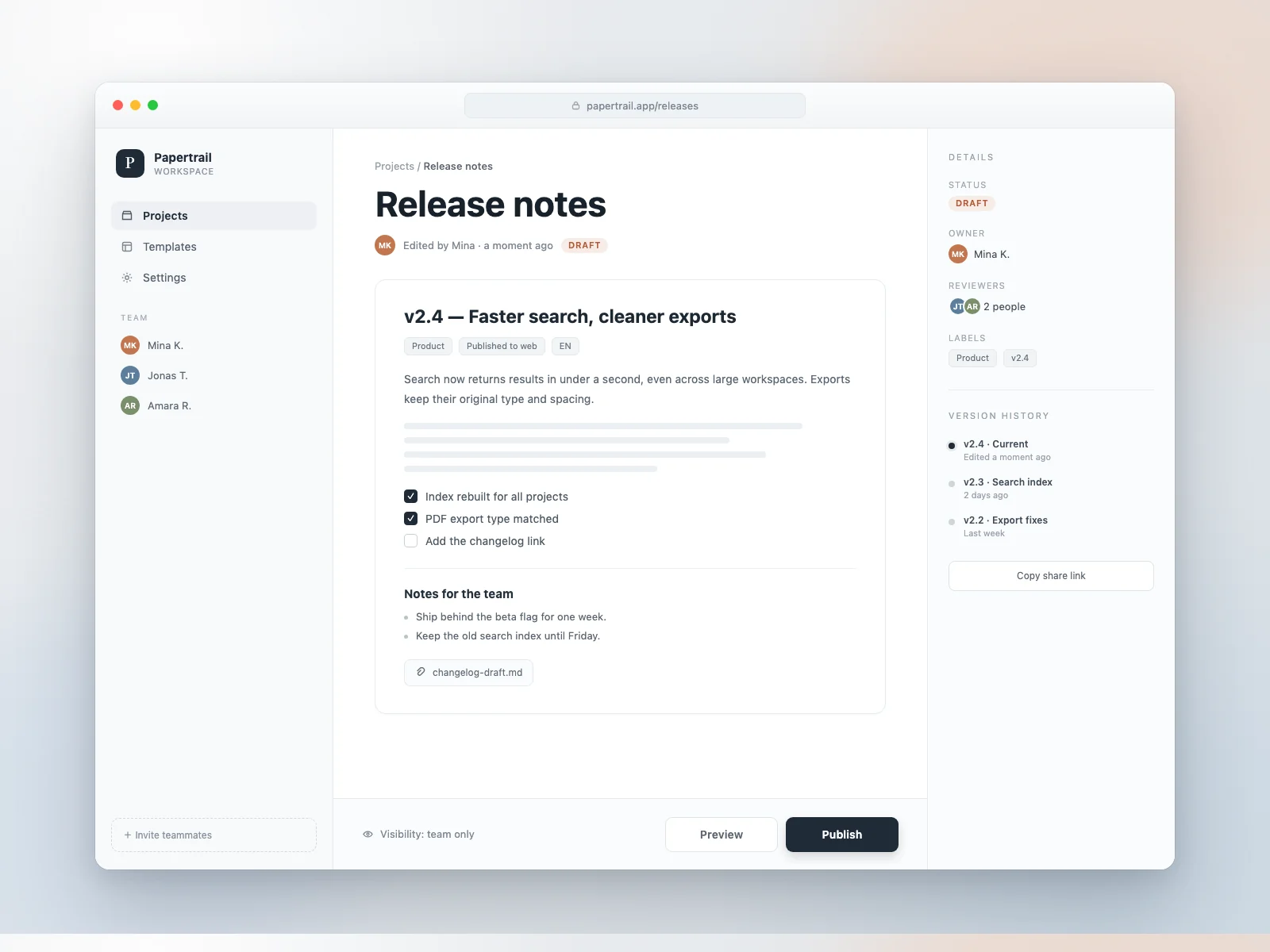
How to make the edit
Use a clean screenshot
Open the original screenshot at full size so small labels are readable. For documentation, use an image you can safely publish.
Replace one UI label
Enter Save draft and Publish. If the same label appears elsewhere, add a region around the button you want to change.
Inspect the surrounding UI
Zoom in and check the button shape, alignment, and nearby labels before adding the image to your guide.
Related guides
Before you download
- Compare the edited area with the original at 100% zoom.
- Check nearby prices, dates, and decoration for accidental changes.
- Keep the original file; an edit creates a new download.
Common questions
- Can I edit the image without the source file?
- Yes. Upload the exported JPG, PNG, or WebP and work on the image itself.
- Can I change only one repeated word?
- Yes. Select just that region instead of replacing every match.