How to fix text in AI-generated images
Fix a misspelled headline, gibberish on a sign, or a broken label by selecting the affected text and checking the edit against the original.
Start with the image you want to keep
Use the best export you have. If a poster has the right artwork and layout but says NIGTH MARKET, write down NIGHT MARKET before editing. Check the intended capitalization, punctuation, and line breaks while you still have the source in view.
Select the broken word or line
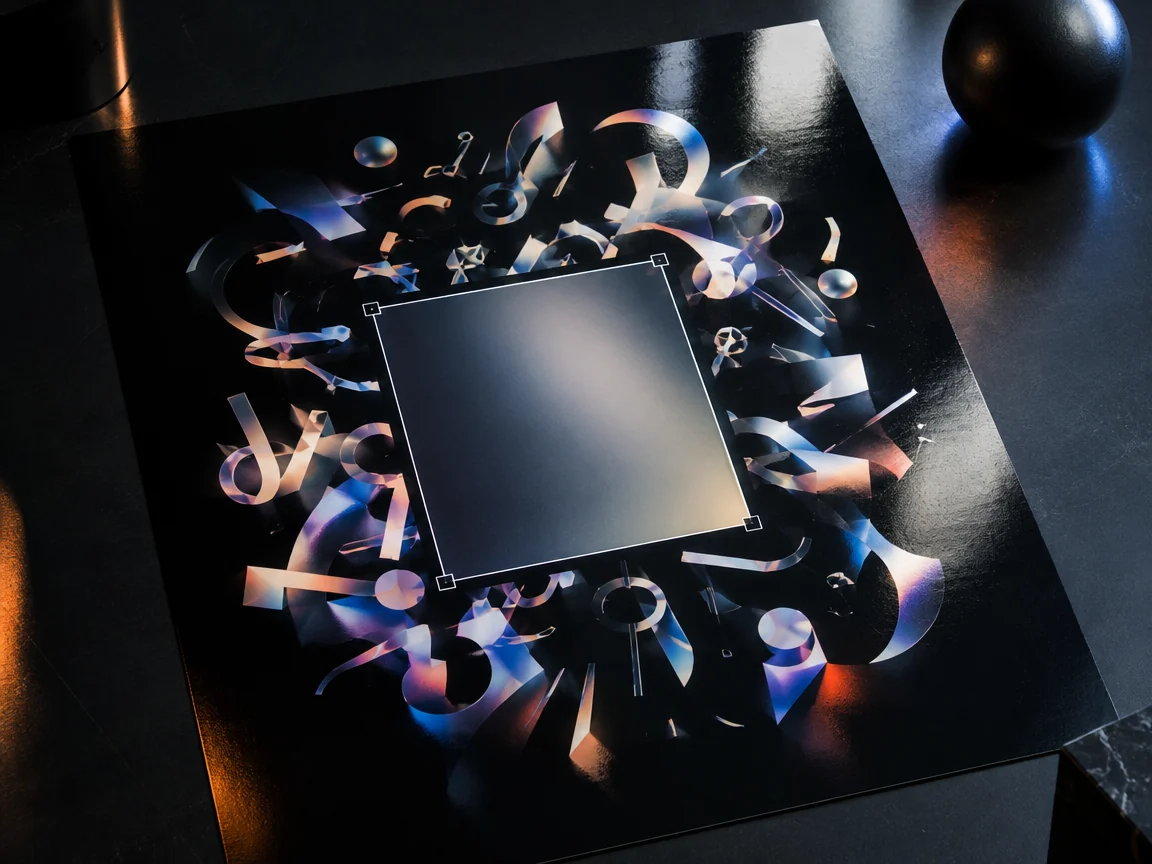
Open Vemlora, upload the image, and use a rectangle for a straight line or the brush for curved lettering. Include the full broken word and its visible outline. Keep nearby words, icons, and dividing lines outside the selection when there is room.
Enter the exact replacement
Enter NIGHT MARKET in the replacement field. If the original characters are readable, enter NIGTH MARKET as the original. If the letters are invented or illegible, leave the original field empty and keep the selection. Give each unrelated label its own selection and wording.
Review the letters and the artwork
After generating, zoom in to check every character. Then zoom out and compare the whole design, including adjacent dates, shadows, and objects. If a nearby line changed, try again from the original with a tighter selection. For dense small print that must be exact, rebuild that block as editable text and proofread it before export.